How it works
The remote
An ordinary 433 MHz hobby remote — the key-fob kind with two to eight buttons. Every button sends a fixed code when pressed, and that code is all the prop ever hears. Any button can drive any scene, several remotes can drive one prop, and one button can drive twenty props at once (radio is broadcast — every prop in range hears it).
The scene
A scene is what a button does: a lighting look (a colour, optionally with an effect, brightness and a fade), a motor speed on props that have one, or both. Scenes are set up from the prop's own web page and saved on the prop — once configured, the prop works with no network at all.
A scene can change one thing, or everything
Each scene sets the lights, the motor (where fitted), both — or deliberately leaves one alone (no change). So one button can start the jellyfish swimming without touching its glow, and another can change the glow without interrupting the swim. The all off button in the scene editor builds a blackout scene that explicitly stops everything.
The chalice is the one exception: its radio is an on/off switch rather than coded buttons, so it has exactly two scenes and nothing to capture — see its own page.
Finding a prop's web page
- Power the prop on. If it already knows your venue WiFi, it joins it — find its address on your router, or use the fleet page of any other prop (below) to spot it.
- If it has no WiFi configured (or can't reach it), the prop raises its
own hotspot named after itself —
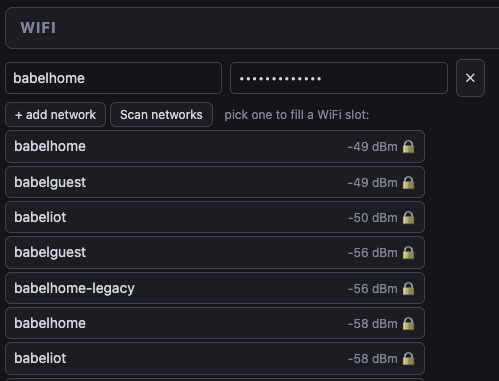
vivo-prop-…,vivo-fogger-…orvivo-jelly-…. Join it from a phone (ask your production tech for the props password) and a setup page pops up automatically — or browse tohttp://192.168.4.1. - From the setup page, add your venue WiFi under WiFi and save — the prop reboots onto the network.
The web page shows a status line: signal strength, free memory, uptime — and a heartbeat dot next to the prop's name that pulses every couple of seconds while the connection is live. If the dot goes red, the page has lost the prop; it reconnects by itself when the prop is back.
Show mode: WiFi switches itself off
For rehearsals and setup sessions, untick Disable WiFi on RF press in Settings so the prop stays reachable while you work.
The web page, tour
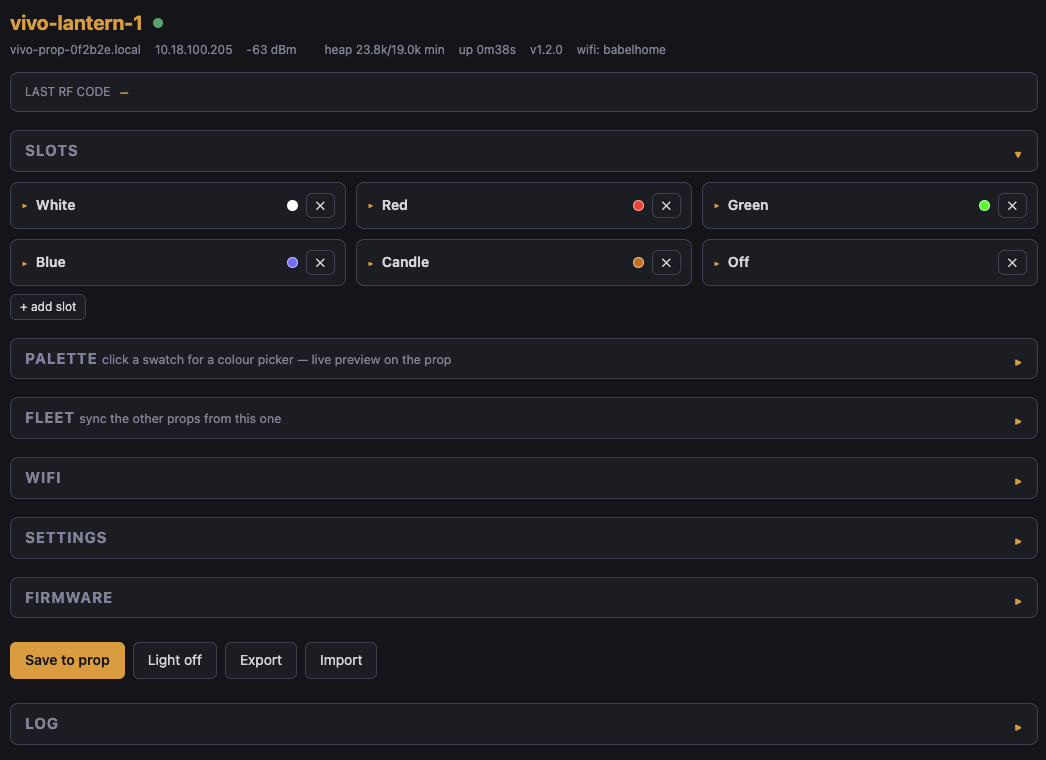
| Section | What it does |
|---|---|
| Last RF code | The bar at the top shows every code the prop hears, as it hears it. Handy for checking a remote's battery or working out which button is which. |
| Slots | Your scenes. Each card holds the remote codes that trigger it plus what it does: lights (a palette colour + optional effect, or off, or no change) and, on the jellyfish, a motor speed. Test fires the scene right now. On boot, under the cards, picks the scene the prop runs at power-up — leave it on nothing and it starts dark. |
| Palette | The shared colour list scenes pick from. Click a swatch for a picker — the prop previews the colour live as you drag. |
| Fleet | Finds the other props on the network; pushes settings or firmware to them; renames them. See Fleet. |
| WiFi | The networks the prop tries at power-on, in order. |
| Settings | Prop name, group, show-mode WiFi toggle, the LED layout — and on motor props, the motor calibration. |
| Firmware | Shows the running version and takes an update file; updates are normally pushed from one prop to the rest via Fleet. |
| Export / Import | Buttons at the foot of the page. Export downloads the prop's whole setup as one file — your backup, and the file the desk controller learns from. Import loads one back. |
Pairing a remote button (capture)
Pairing means teaching a scene which button fires it. The prop captures the code straight off the air, so there's nothing to type.
- Open the prop's web page and expand Slots.
- Press + add slot (or open an existing scene card) and give it a name — that name is what the desk controller will show later, so make it mean something: Candle, Blackout, Storm.
- Press Capture — the button pulses while the prop listens.
- Press the remote button you want. Its code lands in the card instantly. A scene holds up to six codes, so a spare remote's button can be added to the same scene.
- Choose what the scene does (next section), then Save to prop.
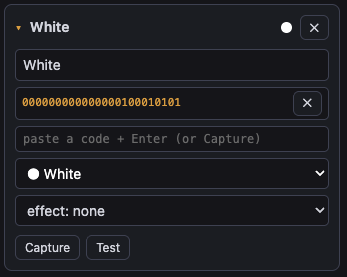
You can also paste a known code (the binary string shown in the Last RF code bar) into a card by hand and press Enter — useful when copying a button between props without walking the remote round.
- Held buttons fire once. Holding a remote button doesn't re-trigger the scene ten times a second — the prop ignores repeats until you let go.
- Interference is normal. The radio hears constant background noise; the props filter it. If a scene ever fires by itself, another remote in the venue shares the same code — recapture with a different button.
- Same button, many props. Capture the same button into a scene on each prop and they all answer together. That's how a fleet of twenty lanterns goes to candle on one press.
Colours, effects and the sliders
A scene's lighting has four parts: a colour from the palette, an optional effect, the effect's speed and depth, and a brightness cap. Plus a fade time for getting there.
The palette
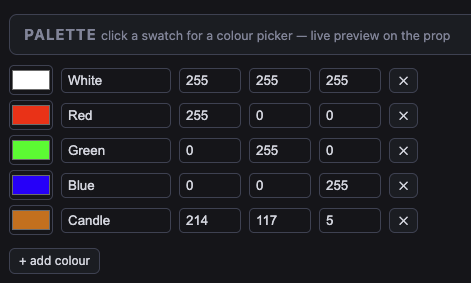
One shared colour list per prop; every scene picks from it. Add a colour, name it, click the swatch to open the picker — the prop shows the colour live while you drag, so judge it on the prop, not the phone.
Effects
| Effect | Looks like | Speed sets | Depth sets |
|---|---|---|---|
| none | steady colour | — | — |
| candle | a live flame: near full, dipping now and then | flicker rate | how deep the dips go (default 70) |
| fire | candle whose colour cools toward red as it dips — a warm base reads as flame rather than a dimming bulb | flicker rate | dip depth |
| pulse | slow breathe up and down | breath rate | how low the trough goes (default 75) |
| twinkle | random white-tinged sparkles over the colour | sparkle rate | sparkle strength (default 40) |
| chase | one bright point running round the ring with a fading tail | rotation (one turn every 2 s at 50%) | how dark the rest of the ring is |
| wave | a smooth band of brightness travelling round the ring — softer than chase, the jellyfish look | rotation rate | the trough |
| strobe | hard on/off, about 4 flashes a second at 50% | flash rate | the off level (100% = black) |
| lightning | random clusters of one to four quick flashes, then a pause of a few seconds | how often storms come | darkness between flashes |
Pick an effect and the depth slider jumps to that effect's natural default. Speed runs 1 to 100%, where 50% is the reference timing, 100% is twice as fast and 25% half. The colour lands first and the effect eases in a beat later — that's intentional.
Brightness and fade
- Brightness (5 to 100%) caps the whole scene, effects included: a candle at 30% flickers under 30%, and twinkle's sparks never punch above it. 100% is the default.
- Fade (0 to 30 s) appears on any scene with a light action. From dark the colour rises over that time; from another colour it crossfades; an Off scene with a fade dims to black under whatever effect is running, then goes dark. Instant is the default.
- Test saves the card first, then fires it, so what you see is exactly what the button will do.
candle, speed 40–50, depth 60–70,
brightness to taste, and a 1–2 s fade so the lantern "catches" rather
than snaps on.LED layout
Chase and wave run round a ring, so the prop needs to know which pixels form one. Settings → LED layout lists up to four rings (first and last pixel, plus a ↻/↺ direction toggle). The defaults are already right for each prop type — lantern pixels 1–6 with the centre pixel left out, jellyfish 0–15, chalice inner 0–7 and outer 8–19 — so leave it alone unless a circle looks wrong. Pixels on no ring sit at the background level. The layout travels with fleet sync.
Fleet: many props, one screen
Open any prop's page, expand Fleet, and press Scan for props. Every powered, connected prop answers with its name, address, version and type. From the table you can:
- Rename a prop or set its group right in the table — edit the field and press the green ✓.
- Push config — copy this prop's scenes/palette to others of the same type (each keeps its own name and, on motor props, its own motor calibration).
- Push firmware — update others of the same type to this prop's version. The list clears while they reboot, then re-scans.
- Sync via prop APs — for props that aren't on the network yet (fresh ones sitting in hotspot mode). This prop leaves the network for a few minutes, joins each prop hotspot in turn and pushes the settings, including the WiFi list; each one it reaches reboots itself onto the venue WiFi. When it returns, its Log lists every prop it found and how each one went.
Groups
Pushes — config and firmware alike — only ever reach props of the
same type: a lantern can push to lanterns, never to a fogger or a
jellyfish. Groups subdivide within a type. A group name (e.g.
lantern-silver) limits config pushes further: a prop with a
group set only accepts pushes from the same group, and a prop with
no group adopts the group of the first push it receives. The line
at the top of the Fleet section always tells you exactly what a push from
that prop will reach. Firmware pushes ignore groups (but still never cross
prop types).
None of this affects the remotes: groups and pushes are about copying settings between props over WiFi. Each prop type answers only its own remote on stage, whatever its group.
fire scene, a 1.4 one ignores fades and
brightness.Backing up
Export at the foot of the page saves the whole setup as one small file. Keep one per prop type with the show's paperwork; Import restores it, and the same file is what the desk controller loads to learn the props' codes.
Troubleshooting
| Symptom | Likely cause and fix |
|---|---|
| Prop vanished from WiFi mid-show | Show mode did its job — a remote press turned WiFi off. Power-cycle the prop when you next need the web page. |
| Heartbeat dot red | The page lost the prop (rebooted, WiFi off, or out of range). It reconnects automatically — if it stays red, power-cycle the prop. |
| Can't find the prop's address | Scan from another prop's
Fleet page, or check your router's client list for
vivo-… names. |
| Remote button does nothing | Watch the Last RF code bar while pressing: no code means the remote (battery, range); a code that doesn't match the scene's card means it was never captured. A held button only fires once until released. |
| Scene fires by itself | Another remote in the building shares that code. Recapture the scene from a different button. |
| Effect looks flat, or a fade snaps | The prop is on older firmware than the one you edited on. Check the version in Fleet and push firmware. |
| Chase or wave runs on the wrong pixels | Check Settings → LED layout — the ring's first/last pixel or direction. |
| Prop starts in hotspot mode | It couldn't reach any saved WiFi. Join the hotspot and fix the network list — or just use it there; scenes work regardless. |